Manually tampering with UEFI settings
Tampering with UEFI settings
This is a post on poking at UEFI settings manually and how to find the hidden settings that was inspired by a post on twitter.
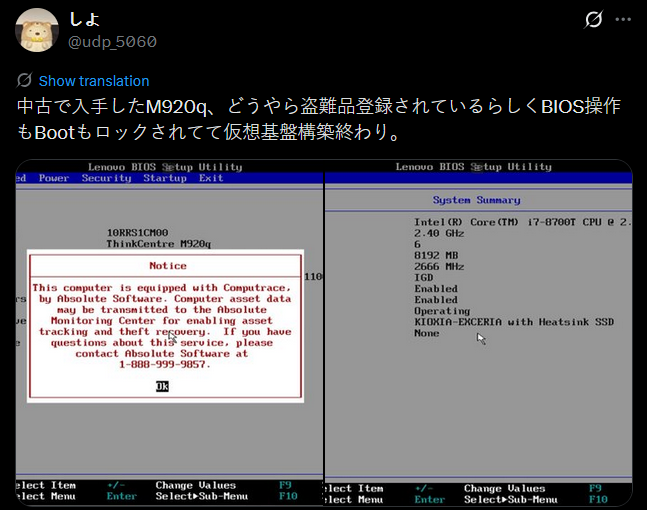
The user had bought a Lenovo M920q and found it had Computrace activated and wanted to turn it off. This is not unusual for second hand machines. Years ago, I removed Computrace from a rugged eBay laptop by replacing the Option ROM. However, that was a BIOS-based machine such tricks won’t work on a modern UEFI-based machine. While modern UEFI is signed code that you can’t tamper with the UEFI variables can still be edited.
I have not tried turning off Computrace by changing UEFI settings and I do not have a suitable test PC so this may not work but I have used this method to change other settings on PC’s successfully. If in the future I acquire a test device I will update this post with confirmation. If you have success or problems let me know and be aware messing with UEFI can potentially brick your machine; do so at your own risk! It should also be noted that these examples are specific to AMI Aptio UEFI however, it should be similar for other brands. Good Luck!
Forbidden settings
UEFI normally provides a setup interface where you can change some settings of your PC but, depending on the manufacturer, may have differing options available. If you are reckless and want to break your PC there is a way to find all the options available including all the ones that aren’t shown in the setup menu. Some of these settings are hidden for a good reason and you may brick your PC tampering with them!
UEFI stores the menu settings in a standard way called Internal Form Representation. Using two excellent tools, UEFITool and IFRExtractor-RS by Nikolaj Schlej it is possible to examine a UEFI image by opening it in UEFITool and then extract the setup DXE. The IFR data can then be extracted from the setup DXE to create a large text file with all the menu settings including all the hidden options. Each option lists what Nvram varstorID it is save in and what offset into that varstore as well as the allowed values.
The examples below are from the Lenovo UEFI file m1ujt78usa.zip I downloaded the USB update image and unzipped it to get the imageM1U.ROM file as an example. It should be representative of the M920q but you should always use your specific UEFI image.
Extract the setup DXE
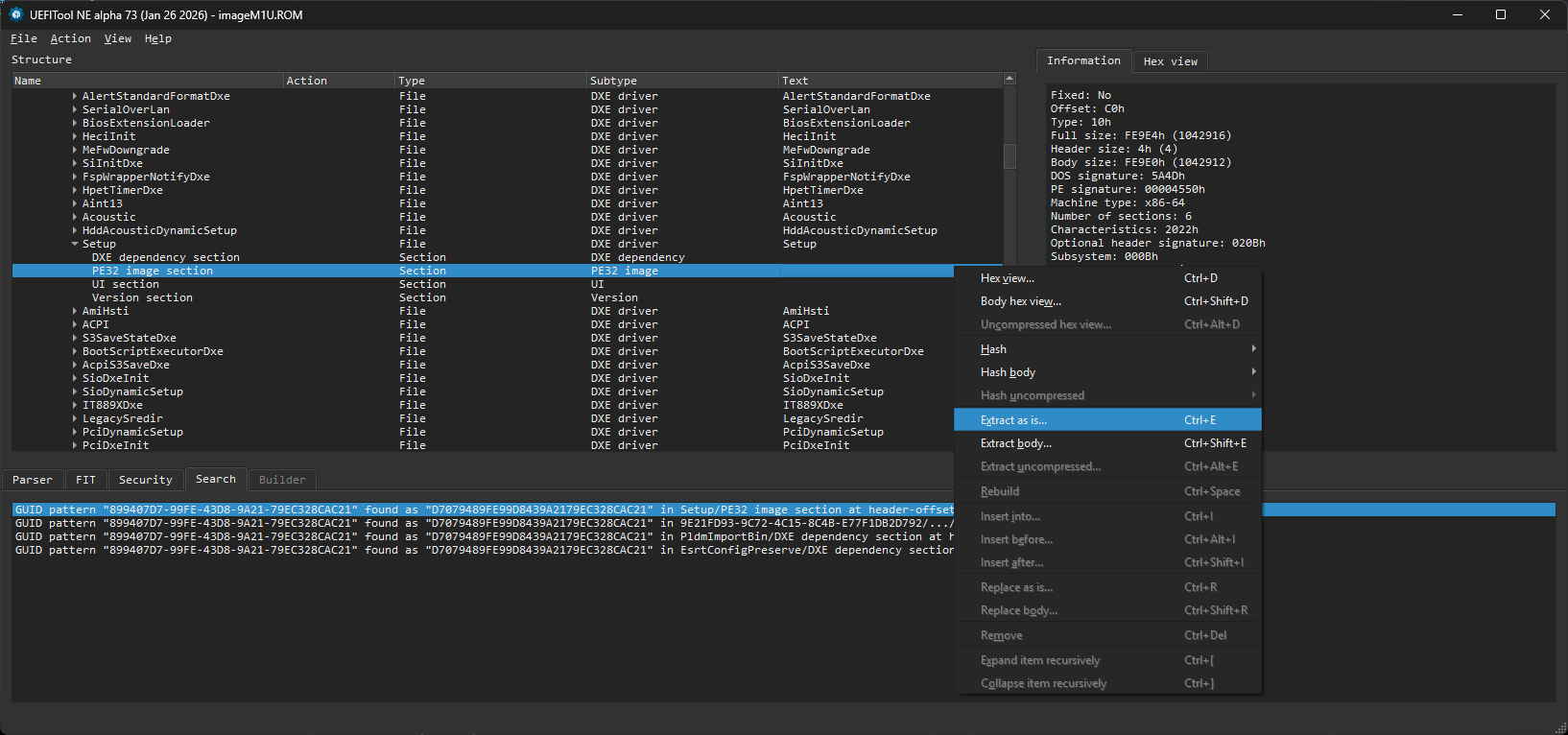
Open the image file in UEFITool and search for the GUID 899407D7-99FE-43D8-9A21-79EC328CAC21 you should get a match in “Setup/PE32 image section” expand this and right click “extract body..” and save the Section_PE32_image_Setup_Setup_body.efi file. If you use “extract as is..” and get a .sct file this will also work.
Extract the IFR
Use ifrextractor to extract all the menu data from .efi file you just saved
1
ifrextractor.exe Section_PE32_image_Setup_Setup_body.efi
This will create the file Section_PE32_image_Setup_Setup_body.efi.0.0.en-US.uefi.ifr.txt
The top of this file lists the variable storage GUID’s and how they are mapped to VarStoreId. In the example below EC87D643-EBA4-4BB5-A1E5-3F3E36B20DA9 (Setup) is referred to as VarStoreId 0x1.
Further down you will find all the options including hidden ones. The example below is the setting for Secure boot. It shows the setting is stored at offset 0x0 of VarStore 0x49 and can be either 0x0 “Disabled” or 0x1 “Enabled” with disabled being the default.

Looking at the top of the file to find the UUID associated with VarStore 0x49
1
VarStore Guid: 7B59104A-C00D-4158-87FF-F04D6396A915, VarStoreId: 0x49, Size: 0x7, Name: "SecureBootSetup"
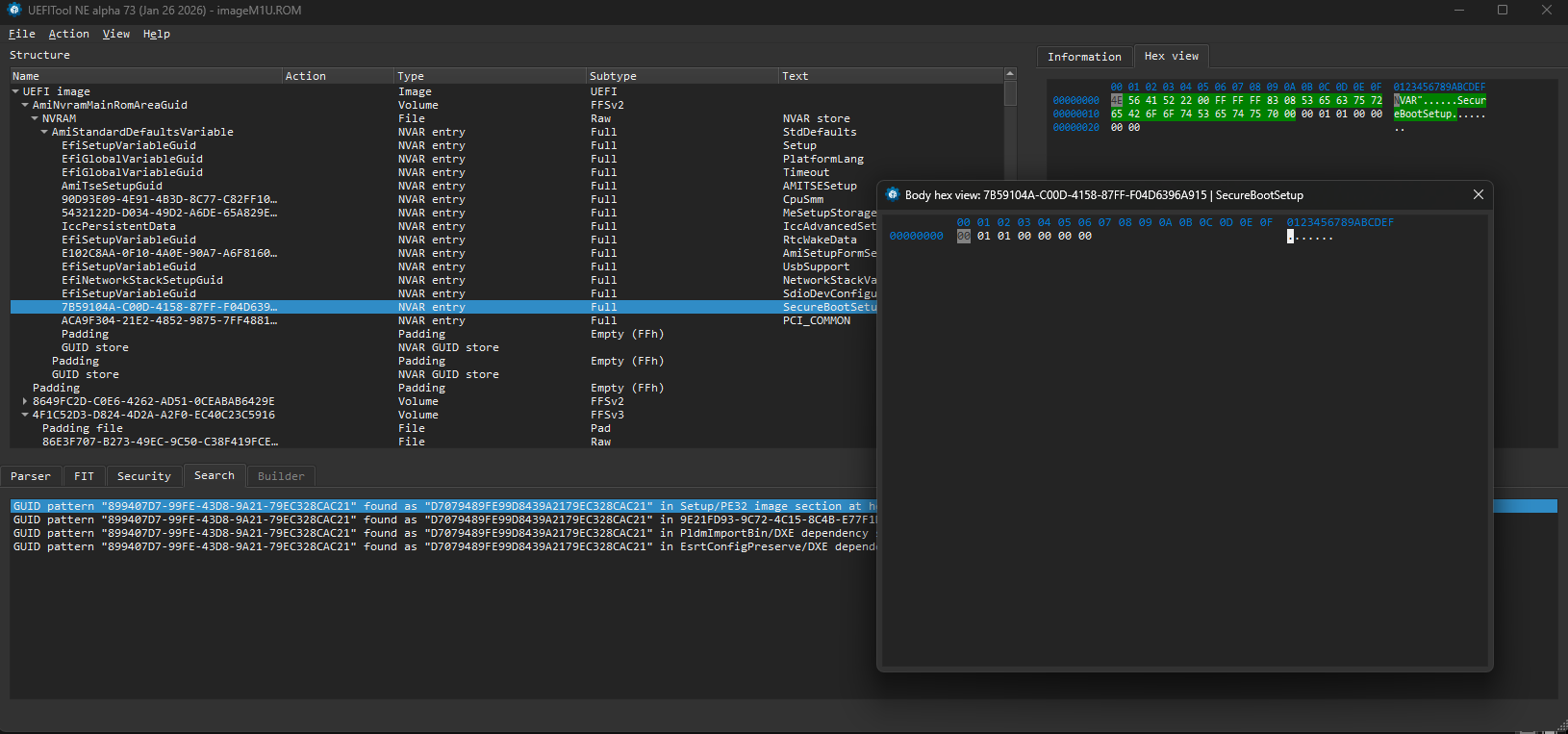
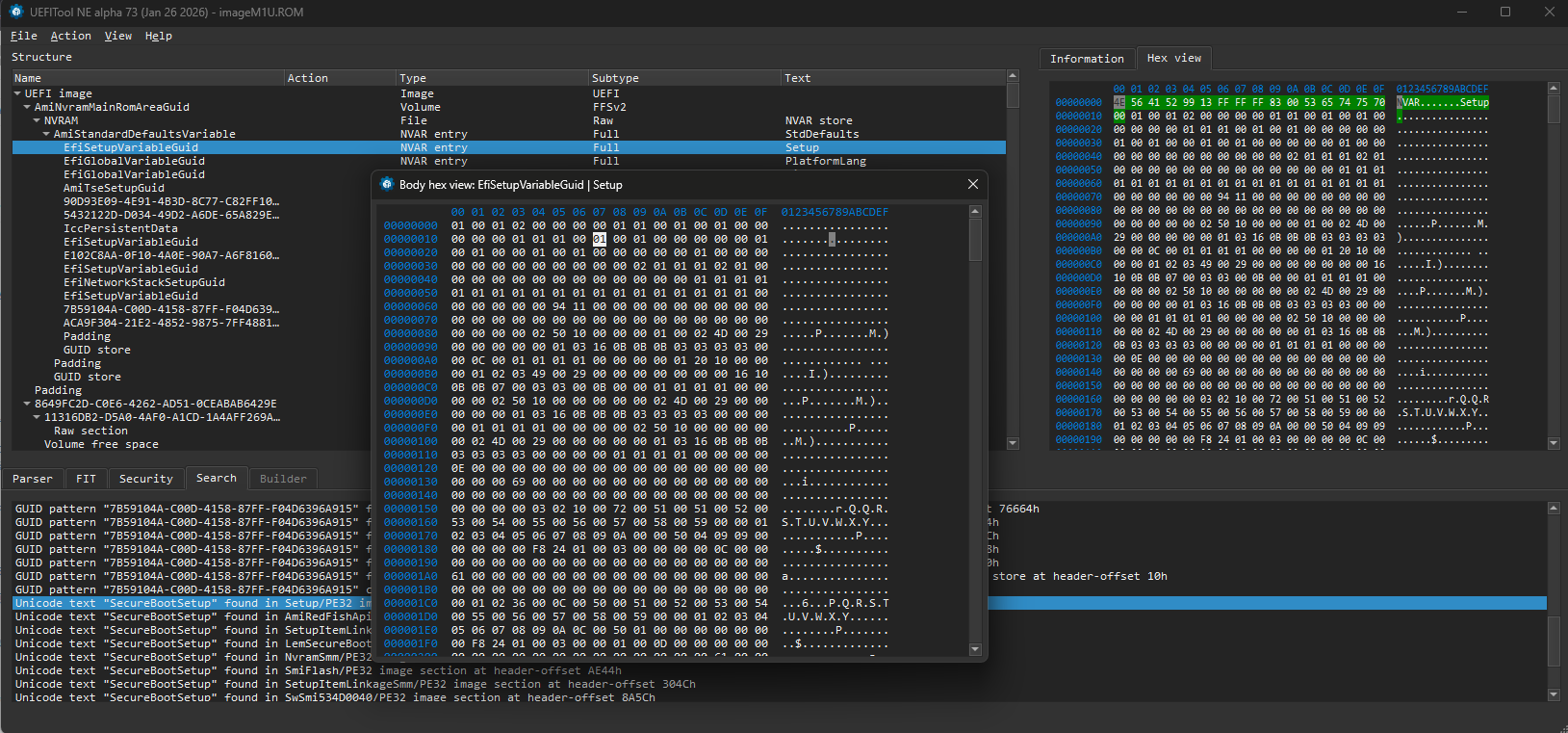
Opening this GUID in UEFI explorer and selecting body hex view shows the settings where offset 0x00 is 0x0. If you were to dump the flash with a flash programmer and edit this to 0x1 then flash it back it would turn secure boot on. There may be two copies of the NVRAM for redundancy, if that is the case both need to be edited.
Computrace
Computrace is a persistent BIOS-level tracking agent sometimes pre-activated on enterprise/refurbished machines it is also enabled in the uefi menu and is supposed to be permanently on when activated. I don’t have a suitable test device to hand so it’s possible this wont work or there are additional settings that need to be changed to turn it off but this is a place to start looking. Below is the menu for the the computrace setting:
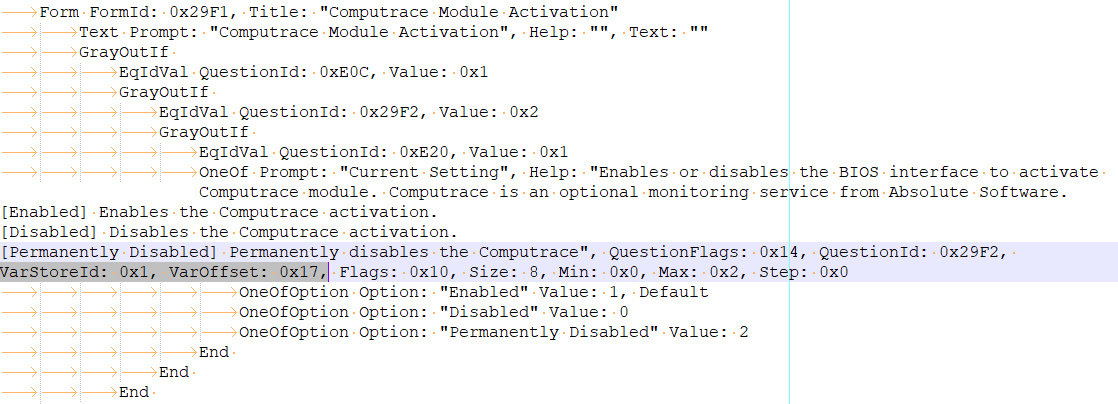
It shows the setting is stored at offset 0x17 in VarStoreId 0x1. Looking up the varstore UUID
1
VarStore Guid: EC87D643-EBA4-4BB5-A1E5-3F3E36B20DA9, VarStoreId: 0x1, Size: 0x1388, Name: "Setup"
So changing EC87D643-EBA4-4BB5-A1E5-3F3E36B20DA9 offset 0x17 to 0x2 should permanently disable Computrace. This can be done with a flash reader such as the XGecu T48 which is probably a good idea so you have a clean backup you can write back in case you brick the PC.
AmiSetupWriter.efi
For settings that are stored in EC87D643-EBA4-4BB5-A1E5-3F3E36B20DA9 it should be possible to change it using AmiSetupWriter.efi which is an AMI tool for changing setup values. It takes an offset and value as arguments and writes the value to the offset of the Setup variable. e.g AmiSetupWriter.efi 0x17 0x2 would write 0x2 to offset 0x17.
To do this you would have to setup a usb stick so you can boot into an efi shell and then run the appropriate AmiSetupWriter command. This is higher risk though as you would not have a clean backup to write back to the flash in case it caused problems.
For any Japanese readers this process is discussed on this post at Sora JUNK Laboratory which covers the more involved process (you have to install a MOK as you cant turn secure boot off through the menu) of jailbreaking a panasonic Toughpad FZ-B2B. For machines that have the option to turn off secure boot you can just do that and then launch an unsigned efi shell. For non-japanese speakers google translate does a good job translating this.
UEFI password
If the machine has a user or admin UEFI password it is stored in C811FA38-42C8-4579-A9BB-60E94EDDFB34 (AMITSESetup) and it might be possible to decode it or that nvram entry can be nulled out and flashed back to remove the password. There is more information on that in my post about a Panasonic CF-U1 here.
Resources
To follow the steps in this guide, you will need a combination of firmware analysis utilities and, ideally, hardware for recovery. Below are the tools used in this post and a few community-standard alternatives.
Software Tools
- UEFITool – For viewing and editing UEFI image structures.
- IFRExtractor-RS – To convert binary IFR data from the Setup DXE into human-readable text.
- AmiSetupWriter.efi – A standalone EFI utility used to write values directly to NVRAM offsets from a UEFI shell.
- UEFI Editor (Web-based) – A GUI-based alternative to AMIBCP for modern Aptio V firmware.
Hardware & Recovery
- XGecu T48 – A budget-friendly SPI flash programmer. Essential for creating a “safety net” backup before you start poking at NVRAM.
Research & Inspiration
- Sora JUNK Laboratory – The original post (in Japanese) regarding Panasonic Toughpad jailbreaking that inspired this post.
- Win-Raid Forums – A community hub for BIOS/UEFI modding.
- My digital Life – Another great resource for BIOS hacks